· software development · 12 min read
My blog got popular, and my bandwidth exploded to ~300GB in just 10 days
This made me take a good, hard look at my Astro blog and start optimizing: assets, headers, caching, CDN. Here is exactly what I did to fix it.

Neciu Dan
Hi there, it's Dan, Senior Engineering Manager at Perk, host of Señors at Scale - a podcast for Senior Engineers, Organizer of ReactJS Barcelona meetup, and international speaker, I'm here to share insights on combining
technology and education to solve real problems.
I write about startup challenges, tech innovations, and the Frontend Development.
Subscribe to join me on this journey of transforming education through technology. Want to discuss
Tech, Frontend or Startup life? Let's connect.
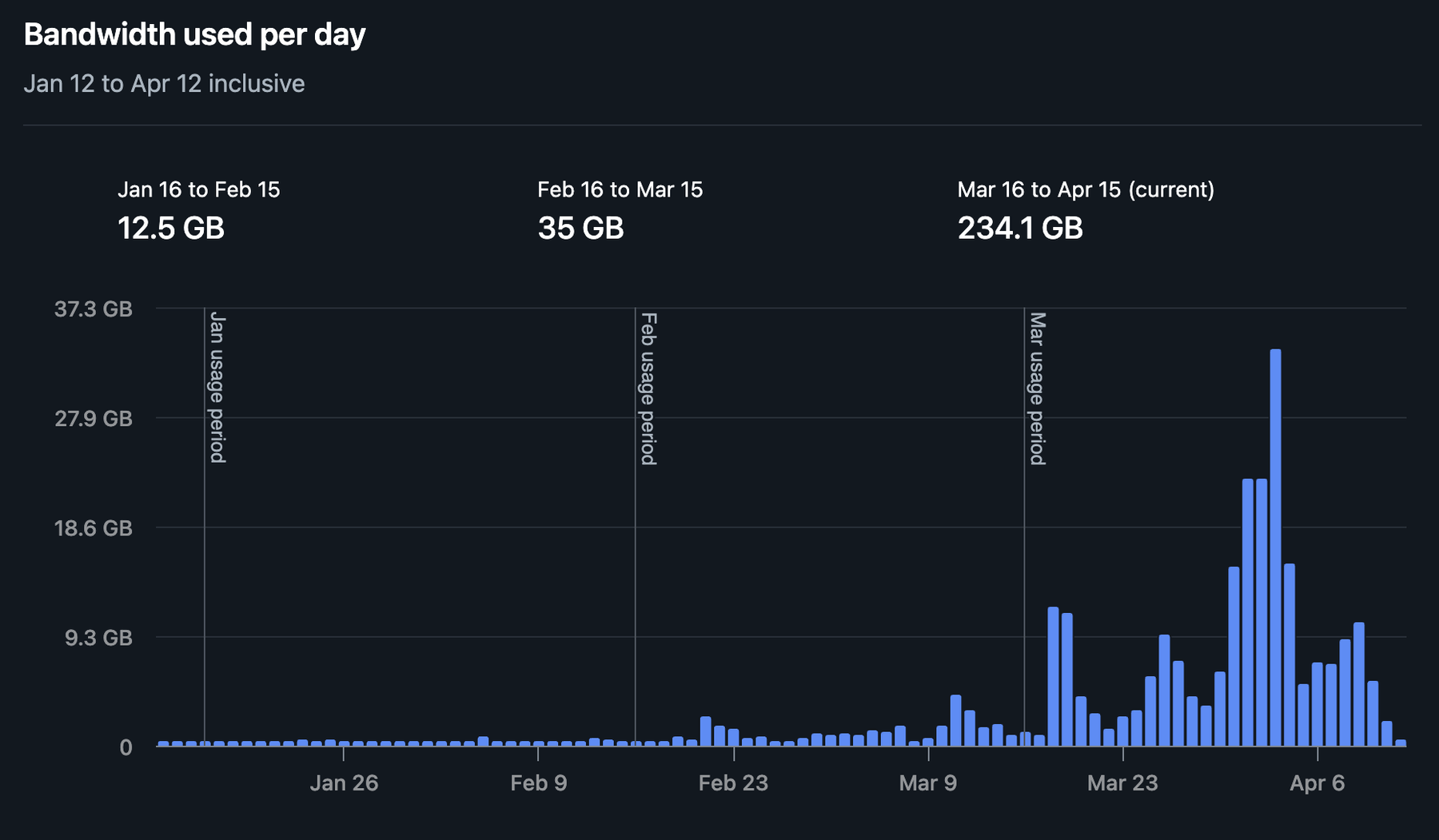
I woke up to a Netlify email telling me I had used 249GB of bandwidth in a single month on my personal website and blog.
Initially, I suspected scraping, but realized instead that my traffic had truly spiked in April—from workshop launches, new articles, and AI crawlers. So the problem wasn’t bots; the issue was what I was serving to real users.
I opened the bandwidth CSV from Netlify, and there it was. 249,590,183,914 bytes on neciudan.dev alone. Everything else (preview deploys, other projects) was noise. This was all me.
PS: I am on a legacy free Starter plan on Netlify. They didn’t really charge me extra. If you are from Netlify and you are reading this, please remember: Snitches get stitches.
With that in mind, I needed to track down where all that bandwidth was going.
The crime scene
I ran a quick audit on my public/ folder. (du -sh is a command that shows the total size of a folder in human-readable format.)
du -sh public/images public/video
# 456M  public/images
# 59M   public/video
456MB of images. On a blog.
Story time: I had rebuilt my About page a few weeks earlier, adding an image carousel of me speaking at conferences. Raw DSLR exports, dragged straight from my camera roll into the project.
I have done no compression or resizing, like a true vibe coder. Committed to git and deployed to production.
# Some highlights from my carousel folder:
# 27M  speaker-2.JPG
# 18M  websummercamp-5.jpg
# 18M  websummercamp-2.jpg
# 15M  devbcn.jpg
# 14M  websummercamp.jpg
# 13M  kcdc-7.jpg
A single photo of me on stage at Web Summer Camp was 18MB. That’s bigger than most npm packages (and less useful).
The carousel contained 52 images totaling 258 MB. Every visit to /about was a data crime.
Why public/ is a trap
If you’re using Astro (or Next.js, or most static site generators), there’s a distinction you need to understand.
Files in src/assets/ are part of a build pipeline. Astro can resize them, convert them to WebP or AVIF, generate srcset attributes for responsive loading, and strip metadata.
You import them, and the framework handles the rest.
Files in public/ skip all of that. They get copied to the output directory byte-for-byte. No build step touches them. Whatever you put in there is exactly what your visitors download. Ouch!
The public/ folder is meant for things you want served unchanged: your favicon.svg, your robots.txt, maybe a PDF. It is not meant for 52 uncompressed DSLR photos.
I knew this, by the way. I’ve been building Astro sites for a while now.
But when you’re rushing to ship a redesigned About page at 11pm, you don’t stop to think about your image pipeline.
You drag, you drop, you git push, you go to bed feeling productive. And then Netlify sends you an email.
No caching, anywhere
Then I checked my _headers file. On Netlify, this is a plain text file you drop in public/ that tells the CDN which HTTP headers to attach to your responses.
Mine had exactly one rule:
/_astro/*
  Cache-Control: public, max-age=31536000, immutable
Astro’s build artifacts were cached (Astro generates hashed filenames in /_astro/, so immutable is safe there). But /images/*? /video/*? /fonts/*? Nothing.
When your browser downloads an image, and there’s no Cache-Control header, it has no idea whether to keep the file or discard it. Most browsers will guess how long to keep it based on when the file was last modified. The guess is often wrong. And on mobile, cached assets are aggressively evicted.
So if someone visited my homepage, left, came back an hour later, they’d download the 6.3MB hero video again. The fonts, too. Every image on the page. Every time.
The immutable directive is the part most people miss. Without it, even with a long max-age, the browser might still send a conditional request to check if the file has changed.
The server responds with a 304 (“nothing changed, use what you have”), but that round trip still costs time. With immutable, the browser trusts the cache completely and makes zero network requests until the max-age expires.
For static assets that never change (fonts, images with fixed filenames), that’s bandwidth you never spend.
The hero video situation
Speaking of the hero video. I had added a 30-second background video to the homepage a couple of weeks ago. The implementation was fine, for once. It only loads on desktop via matchMedia (which checks if the screen is at least 768px wide), so mobile visitors never download it:
if (!window.matchMedia('(min-width: 768px)').matches) return;
var video = document.createElement('video');
video.muted = true;
video.autoplay = true;
video.loop = true;
video.playsInline = true;
video.preload = 'auto';
That preload="auto" is the problem. It tells the browser: “Download the entire video file as soon as possible, before the user has done anything.”
Every desktop visitor was downloading 6.3MB immediately, even if they scrolled past the hero in half a second.
The three preload values are none (download nothing until the user hits play), metadata (just enough for duration and dimensions, about 100KB), and auto (the whole file, right now, aggressively).
Since my video autoplays, I can’t use none. But metadata gives the browser enough to start rendering while it streams the rest progressively.
The visual difference? Zero. The bandwidth difference? The first paint goes from 6.3MB to about 100KB. (That 100KB estimate assumes the video was encoded with faststart, which puts the metadata at the front of the file. If yours wasn’t, the browser might need to download more before it can start playback.)
Oh, and I also had four unused video files sitting in public/video/:
ls -lh public/video/
# 18M  hero.mp4           # unused
# 18M  hero_compressed.mp4 # unused
# 1.3M hero_backup.mp4     # unused
# 1.3M hero_small.mp4      # unused
# 6.3M hero_30s.mp4        # the only one actually referenced
38MB of dead weight. These were leftovers from a previous compression attempt. I had tried multiple approaches, kept all the intermediate files around “just in case,” and never cleaned up.
They weren’t referenced anywhere in the code, yet they were deployed to Netlify on every build.
public/ doesn’t have a tree-shaking step. If a file is in there, it ships.
The fix
Six changes. Took about 30 minutes total.
1. Compress the images
The carousel photos were 4000-7000 pixels wide. They display at maybe 800px on screen. My monitor is 1440p. Nobody needs a 7000px wide photo of me pointing at a slide.
I used macOS’s built-in sips to resize and recompress. Fair warning: this modifies files in-place, so back up your originals first (or just rely on git).
Also, this code is AI-generated, so use it with care!
for f in public/images/about/carousel/*.jpg; do
    w=$(sips -g pixelWidth "$f" | tail -1 | awk '{print $2}')
    if [ "$w" -gt 1600 ]; then
        sips --resampleWidth 1600 -s formatOptions 80 "$f"
    else
        sips -s formatOptions 80 "$f"
    fi
done
The logic is simple: if it’s wider than 1600px, resize it down to 1600px and set JPEG quality to 80%. If it’s already smaller, just recompress at 80%. sips is macOS-only. On Windows or Linux, you can use sharp, imagemagick, or Squoosh (which runs in the browser and handles everything).
The carousel went from 258MB to 20MB. A 92% reduction.
I ran the same treatment on other oversized images (article headers, video thumbnails, profile pictures). Anything over 1MB got the resize-and-recompress pass.
2. Add cache headers
# netlify.toml
[[headers]]
  for = "/images/*"
  [headers.values]
    Cache-Control = "public, max-age=2592000, immutable"  # 30 days

[[headers]]
  for = "/video/*"
  [headers.values]
    Cache-Control = "public, max-age=2592000, immutable"  # 30 days

[[headers]]
  for = "/fonts/*"
  [headers.values]
    Cache-Control = "public, max-age=31536000, immutable"  # 1 year
30 days for images and video. One year for fonts. Repeat visitors now download these assets exactly once.
One caveat with immutable on images: if you update an image while keeping the same filename, browsers will serve the old version for the full 30 days. Either rename the file when you change it, or drop immutable and accept the occasional 304 round trip.
For fonts, this is not an issue since they never change.
I also added the same rules to the _headers file in public/. On Netlify, both netlify.toml and _headers work for setting headers.
I used both because I don’t trust myself to remember which one I configured six months from now.
3. CDN edge caching for static pages
This is the one I wish I’d known about sooner.
When someone in Tokyo requests your blog post, the request travels to the nearest Netlify edge node. Without CDN caching, the edge node forwards the request to the origin server (where your site is actually hosted), receives the response, sends it back to the user, and then immediately forgets about it.
The next visitor from Tokyo? He does the same round trip.
With CDN caching, the edge node keeps a copy. The next thousand visitors from that region get served instantly from the edge.
Netlify has a separate Netlify-CDN-Cache-Control header that controls the CDN edge independently from the browser:
[[headers]]
  for = "/blog/*"
  [headers.values]
    Cache-Control = "public, max-age=0, must-revalidate"
    Netlify-CDN-Cache-Control = "public, max-age=86400, stale-while-revalidate=604800"
    # 86400 = 24 hours, 604800 = 7 days
Cache-Control talks to the browser. I’m saying: “Don’t cache this HTML locally. Always check with the server.” So if I fix a typo in a blog post, the next visitor sees the fix immediately.
Netlify-CDN-Cache-Control talks to Netlify’s edge nodes. I’m saying: “Cache this page for 24 hours. After it expires, keep serving the stale version while you fetch a fresh copy in the background (stale-while-revalidate).” The edge still makes a background request to the origin when revalidating; the visitor just doesn’t wait for it to complete.
I added this for /, /about, /blog/*, /senors-at-scale, and /takeaways/*. All of these are prerendered at build time by Astro (they use export const prerender = true), so they’re static HTML files.
Worth noting: Netlify already caches static files on the CDN and automatically invalidates the cache on every deploy. The explicit headers give me control over stale-while-revalidate behavior, which the automatic caching doesn’t support.
4. Fix the video preload
// Before
video.preload = 'auto';

// After
video.preload = 'metadata';
I also should have added a poster attribute (a static image that displays before the video loads). That way, the user sees something immediately instead of a blank container while the first frame streams in. I’ll do that in the next pass.
5. Delete unused files
rm public/video/hero.mp4
rm public/video/hero_compressed.mp4
rm public/video/hero_backup.mp4
rm public/video/hero_small.mp4
38MB gone. The files are still in git history (use git filter-branch or BFG Repo Cleaner if that bothers you), but they’re no longer deployed to Netlify on every build.
A reminder to periodically grep your codebase for files in public/ that nothing references anymore. Here’s a quick script to find them:
for f in $(find public/images -type f); do
    name=$(basename "$f")
    if ! grep -rq "$name" src/ --include="*.astro" --include="*.tsx" --include="*.ts" --include="*.md" --include="*.css"; then
        echo "Possibly unused: $f ($(du -h "$f" | cut -f1))"
    fi
done
This won’t catch images referenced via dynamic paths or CSS background-image URLs built from variables, so check those manually.
6. Move images to Astro’s <Image> component
This is the one that made me wish I’d done it from the start.
Astro has a built-in <Image> component (from astro:assets) that does everything the manual compression did, but automatically, at build time, every time. You import an image from src/assets/ instead of referencing a path in public/, and Astro takes care of the rest.
Here’s what the carousel cover images looked like before:
<img src="/images/about/carousel/kcdc.jpg" alt="KCDC 2024" class="carousel-slide__img" loading="lazy" />And after:
---
import { Image } from 'astro:assets'
import kcdcImg from '~/assets/images/about/carousel/kcdc.jpg'
---
<Image src={kcdcImg} alt="KCDC 2024" class="carousel-slide__img" loading="lazy" width={800} format="webp" />
What <Image> gives you:
- Automatic WebP conversion — Astro converts JPEGs to WebP at build time. My 300KB compressed JPEG becomes a 70KB WebP. No manual step.
- Resize to what you actually need —
width={800}means the image ships at 800px, not 1600px. The browser doesn’t download pixels it will never render. - Content-hashed filenames — output becomes something like
/_astro/kcdc.976dd730_Zk6dPc.webp. That hash means the file is safe to cache withimmutableforever. When the source image changes, the hash changes, the filename changes, browsers fetch the new version automatically. - Lazy loading and decode async — baked in by default.
The build log tells the story. Here are a few of the 61 images Astro processed:
/_astro/devbcn.976dd730_Zk6dPc.webp    (before: 178kB, after: 20kB)
/_astro/kcdc-5.c7c54d51_Z28YFaa.webp   (before: 380kB, after: 74kB)
/_astro/speaker-map.675f3a15_Zkwg22.webp (before: 457kB, after: 34kB)
The tricky part was the lightbox. When you click a carousel slide, JavaScript opens a gallery of full-size images. Since client-side JS needs string URLs (not Astro component references), I used getImage() to resolve optimized URLs at build time:
---
import { getImage } from 'astro:assets'

async function resolveUrls(imgs: ImageMetadata[]) {
  const resolved = await Promise.all(
    imgs.map(img => getImage({ src: img, width: 1200, format: 'webp' }))
  )
  return resolved.map(r => r.src)
}
---
<div data-gallery={JSON.stringify(await resolveUrls(ev.images))}>
The lightbox images get optimized to 1200px WebP (good enough for full-screen viewing), and the URLs point to Astro’s hashed output files in /_astro/. The JavaScript doesn’t know or care that the images were optimized — it just gets string URLs like before.
After this migration, I deleted the carousel originals from public/. The source images now live in src/assets/images/about/carousel/, and Astro generates the optimized versions on every build.
The results
| What | Before | After |
|---|---|---|
Images folder (public/) | 456 MB | 142 MB |
Carousel (now in src/assets/) | 258 MB → 20 MB compressed | ~4 MB WebP output |
| Video folder | 59 MB | 20 MB |
| Total deployed assets | ~515 MB | ~162 MB |
That’s a 68% reduction in deployed asset size. But the real savings come from caching. Repeat visitors (which are most visitors) will download close to zero bytes on subsequent visits for the next 30 days. CDN edge caching means even first-time visitors in the same region benefit from previous visitors’ requests.
And the Astro <Image> pipeline means I’ll never accidentally deploy a 18MB DSLR photo again. If I drop a raw camera file into src/assets/, it gets compressed and converted automatically at build time.
What I should still do
A couple of things I skipped for now.
Add a poster to the hero video
A low-res screenshot of the first frame, so the hero section renders instantly while the video streams in.
What I didn’t do
I didn’t block AI crawlers. GPTBot, Claude-Web, and friends are all welcome. They bring traffic, they index my content, and the bandwidth they use is a rounding error compared to serving 18MB JPEGs to humans.
Check yours
Run this right now:
du -sh public/*Then open devtools, go to the Network tab, and click on any image. If you don’t see a Cache-Control header in the response, every visitor is downloading that file fresh. Every time.
A 20-minute audit saved me what would have been hundreds of gigabytes next month.

Discover more from The Neciu Dan Newsletter
A weekly column on Tech & Education, startup building and occasional hot takes.
Over 1,000 subscribers


